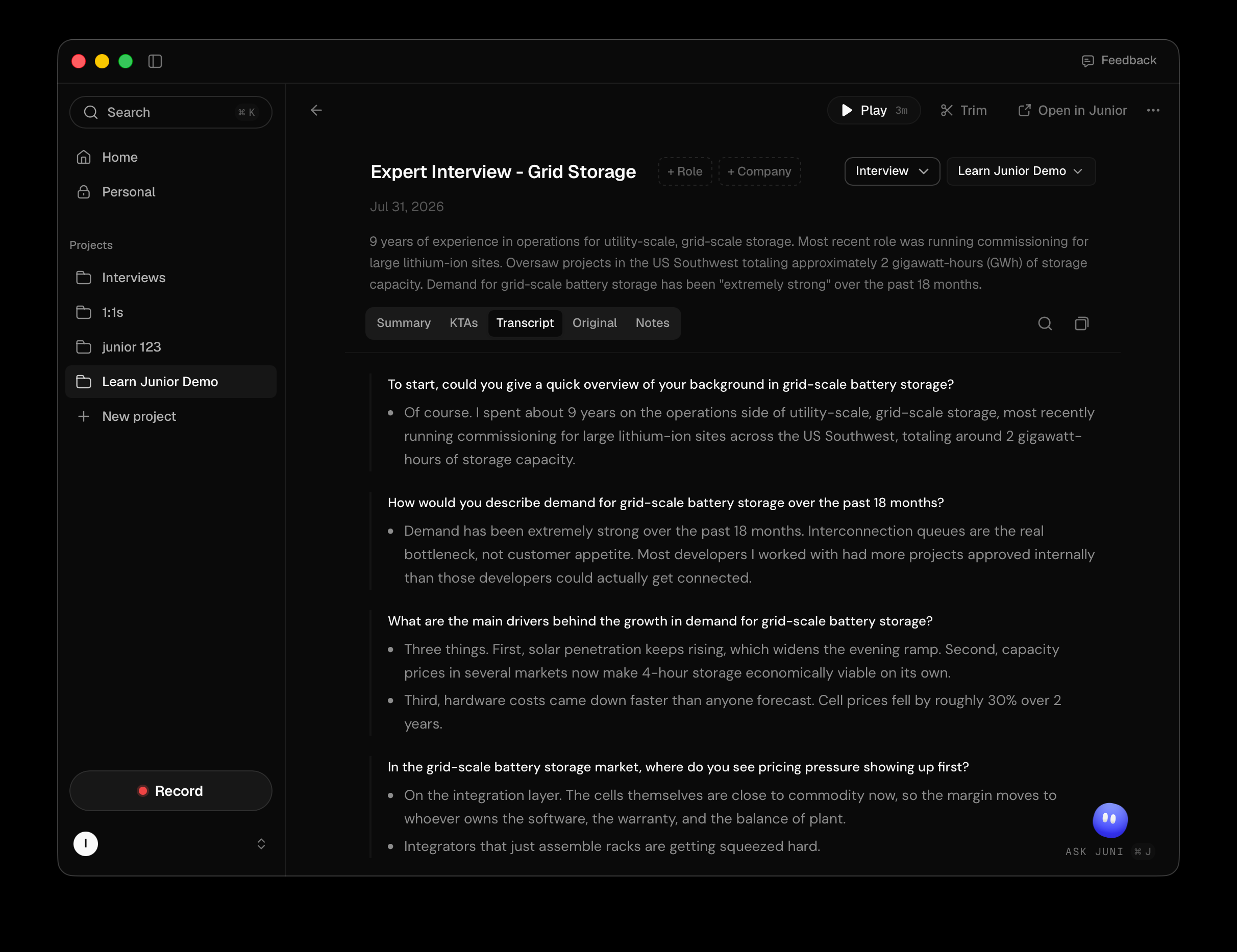
| Tab | What's in it |
|---|---|
| Summary | A prose account of the call |
| KTAs | Key takeaways: the shortest useful version |
| Transcript | The cleaned transcript or meeting notes, as question-and-answer blocks |
| Original | The full transcript as spoken |
| Notes | Your own notes. Still editable |
A tab with nothing in it isn't shown, so which tabs you see varies from call to call. Transcript is the one that varies on purpose: interviews always get a cleaned transcript, and meetings get cleaned notes where they've been switched on. See meetings and interviews.
Playing the audio back
The player offers play and pause, a scrubber, and speeds from 0.5x to 2x.
Some organisations have audio playback withheld, in which case there's nothing to
play back and Trim isn't offered either.
The useful part is that the transcript is clickable. Click any word and the audio jumps to the moment it was said. On a cleaned transcript you can jump to the start of any question-and-answer block the same way. It's much faster than dragging the scrubber looking for a number someone quoted.
Questions
What's the difference between Transcript and Original?
Original is what was said, in order, as spoken. Transcript is the cleaned version: filler and repetition removed, and the conversation reorganised into question-and-answer blocks so it reads like notes. Use Original when you need the exact words, Transcript when you need the substance.
My call has no Transcript tab, only Original.
It's filed as a Meeting. Cleaning is built around interviews, so meetings get the original transcript and no cleaned one. If it really is an interview, change the call type. See naming a call and filing it.
Can I fix a speaker's name after the call?
Yes, on the transcript, the same way as during the call: click the speaker's label and rename or merge them. You can't clear a name back to an unnamed speaker once one has been set.
I can't play a call back.
Playback streams the audio from Junior, so a recording that hasn't finished uploading can't be played yet even though the call is listed. Wait for the upload to complete. If it has been a while, check a recording won't save.