Use your phone when you're recording a conversation happening in the room with you. For anything on your laptop (Zoom, Teams, Meet) use Junior for Mac and Windows instead.
Record something
- Tap the record button at the bottom right of the screen.
- Allow microphone access when your phone asks. Junior only asks the first time.
- Recording starts on its own, as soon as the screen opens. Talk for at least a minute.
- Tap End.
Say aloud that you're recording before you start. It's the one habit worth building on day one. See getting consent.
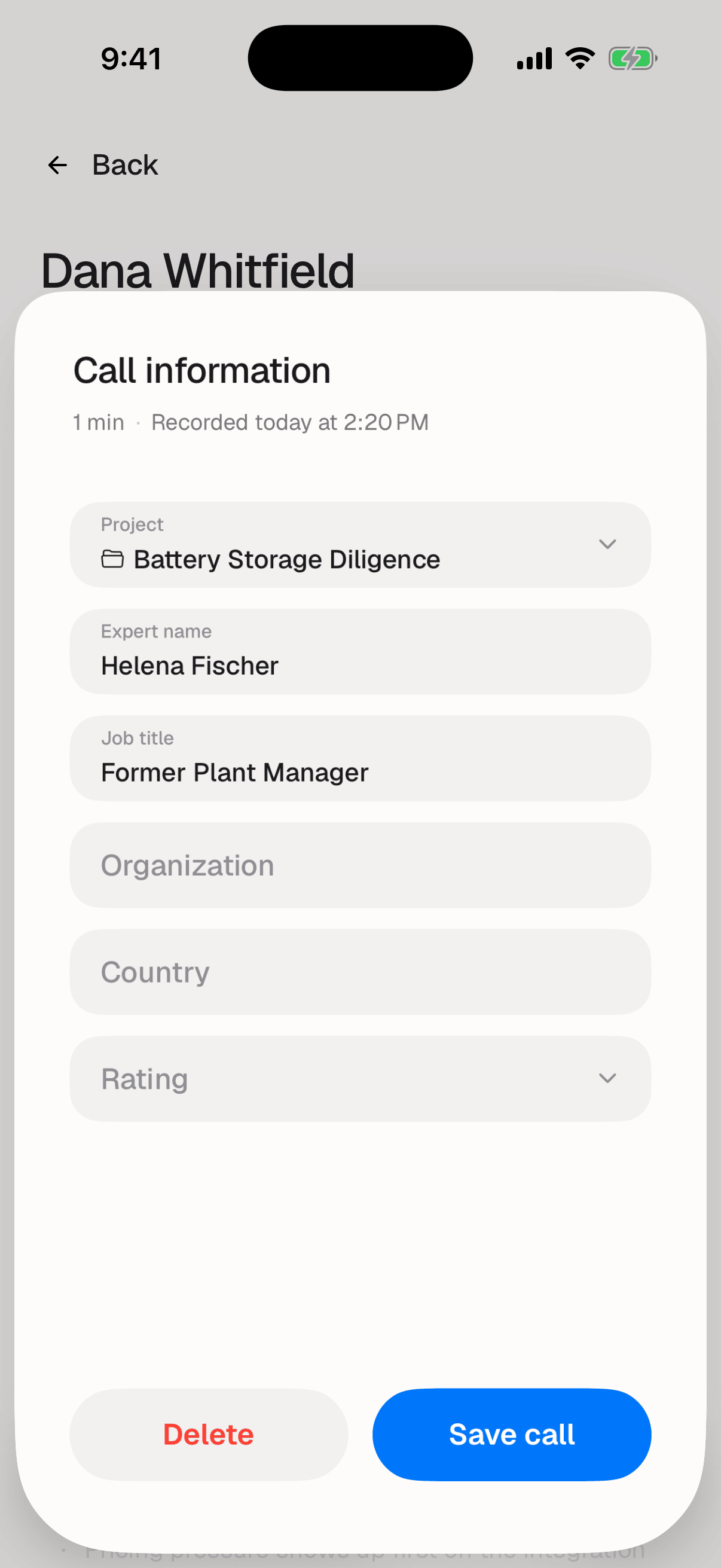
Save it
- Choose a Project. This is the only field you have to fill in.
- Add the Meeting name, Job title, Organization and Country if you know them. All optional, and this is the only screen that can set them, so do it now.
- Tap Save call
Junior uploads the recording and starts processing it. You don't have to stay in the app, but don't close it while the upload is still running.