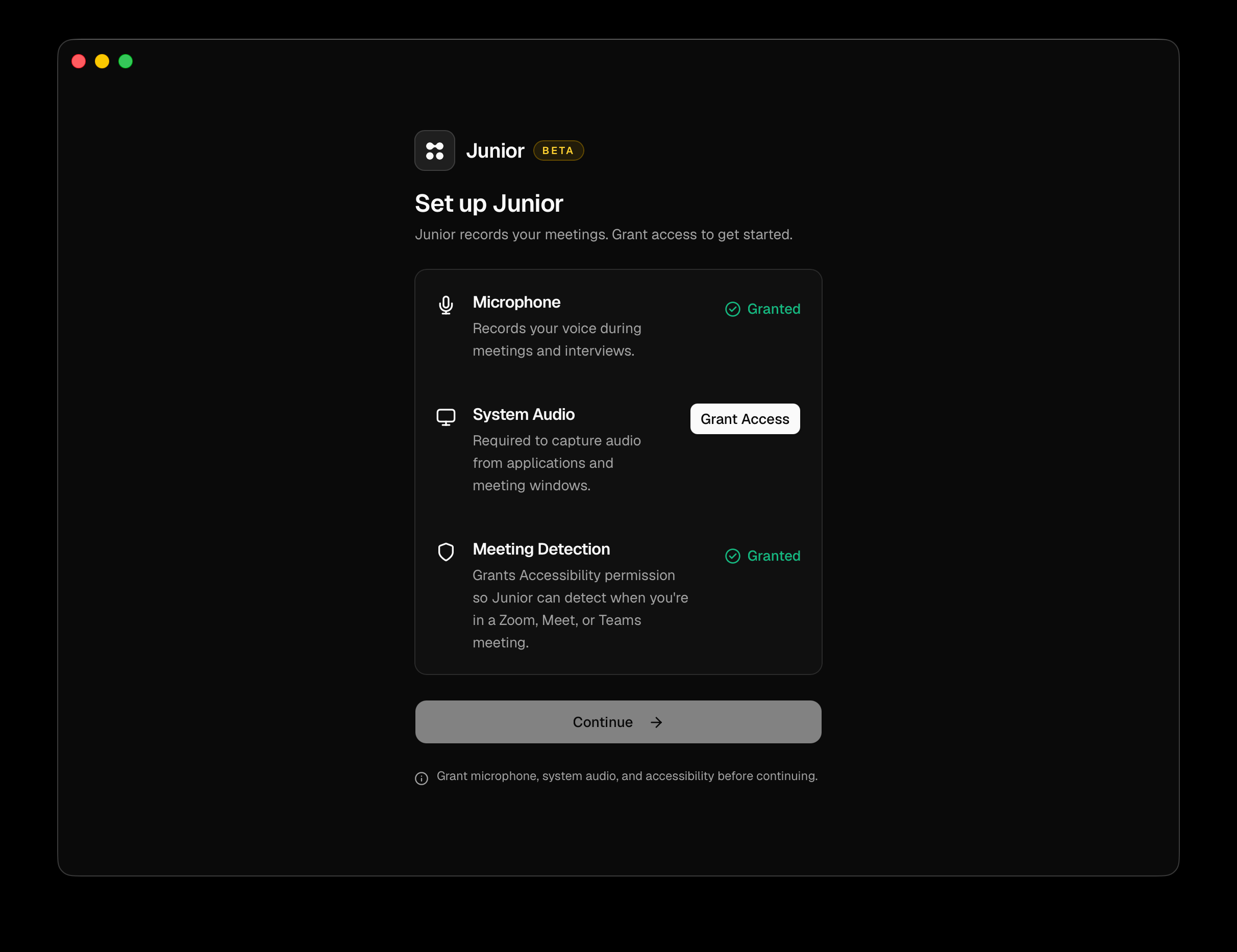
Junior asks for these the first time you open it, on a screen headed Set up Junior. You can come back to it later, but you can't record until microphone and system audio are granted.
| Permission | What it's for |
|---|---|
| Microphone | Records your voice during meetings and interviews |
| System Audio | Records everyone else: anything coming out of your speakers |
| Meeting Detection | Lets Junior notice when you join a Zoom, Meet or Teams call. Mac only |
- Open Junior. The setup screen lists each permission with a Grant Access button.
- Grant Microphone. macOS asks; answer yes.
- Grant System Audio. macOS asks; answer yes. Only if it's denied does Junior point you at System Settings, where you allow Junior under System Audio Recording and then come back.
- Grant Meeting Detection. This is the Accessibility permission, and macOS never prompts for it, so Junior opens System Settings instead.
- Press Continue.
Each row shows Granted once it's done, or Waiting... while macOS decides. A row that reads "Permission denied. Please enable in System Settings." needs the Open Settings button rather than another attempt.
Junior needs macOS 14.4 or later. System audio capture doesn't exist on earlier versions.
Questions
Why does Junior need system audio as well as my microphone?
They're two different halves of the conversation. Your microphone captures you; system audio captures everyone else, because their voices reach you through your speakers rather than through the room. Without system audio, a recording of a video call is you talking into silence.
Why did macOS not ask me about system audio?
Because there's no prompt for it. Apple provides no way for an app to raise a system audio permission dialog, so the only route is System Settings. That's why Junior sends you there instead of asking.
Why does Meeting Detection need Accessibility access?
It's how Junior sees which app or browser tab is in front of you, so it can tell that you've joined a meeting. It doesn't read the contents of your screen, and it's only used to spot the meeting. See when Junior spots a meeting on its own. Junior records perfectly well without it; you just have to start recordings yourself.
Junior told me permission was revoked in the middle of a call.
Something changed the setting while you were recording, usually a device change or an IT policy applying. Junior shows a banner naming which one went: "System audio permission was revoked", "Microphone permission was revoked", or both. Audio already captured is safe. Use the banner's Settings button, grant it again, and the recording keeps going.