Copying a tab
Every tab has a copy menu with two options: Copy as markdown, which keeps headings and bullets, and Copy as plain text, which flattens everything. Markdown is what you want for anything going into a document; plain text is for a chat message or an email.
Downloading the whole call
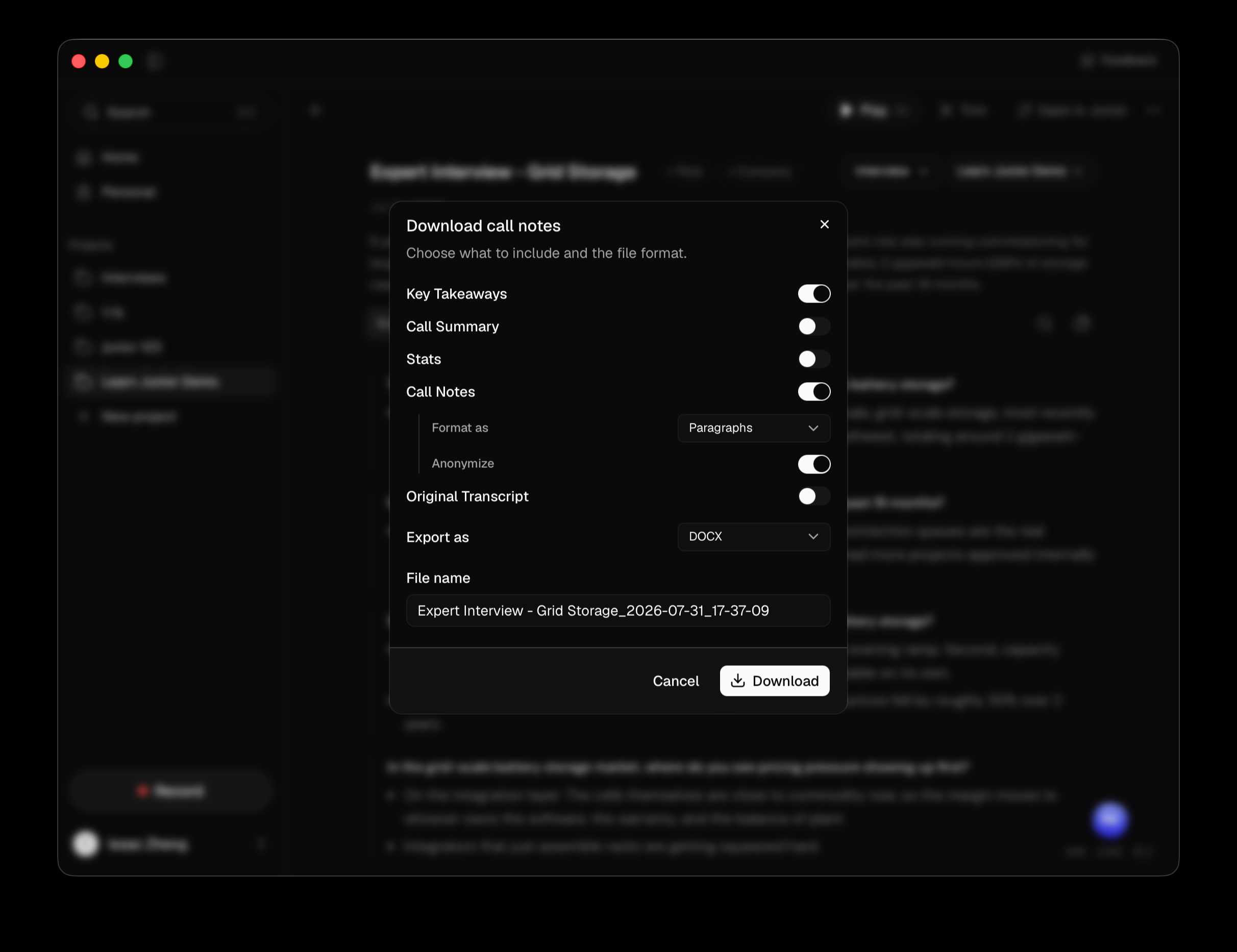
The more-actions menu on a call has Download transcript. For projectless calls, it may be disabled depending on your firm's export settings. It opens a dialog where you pick what goes in:
| Include | Notes |
|---|---|
| Key Takeaways | |
| Call Summary | |
| Stats | |
| Call Notes | Choose Paragraphs or Bullet points, and whether to Anonymize |
| Original Transcript | The full as-spoken version. Some workspaces don't offer it |
Then a format:
| Format | Use it for |
|---|---|
| DOCX | Anything going into a Word document or a deck |
| Sending out as-is | |
| Markdown | Pasting into another tool |
| Separate files | A zip with each section as its own file |
Name the file and press Download.
Questions
What does Anonymize do?
It removes identifying details from the notes section as it exports, so the substance can be shared without naming who said it. Check the output before sending. It's a help, not a guarantee, and you know your own confidentiality obligations better than it does.
Images in my notes didn't come through when I copied.
Copying an image gives you its alt text rather than the picture. Use the download instead if the screenshots matter.