Your phone records the room. It captures your microphone and nothing else, which makes it right for a conversation happening in front of you or one you're holding to your ear, and wrong for a video call on your laptop. For that, use Junior for Mac and Windows, which can hear both sides.
Start recording
- Tap the record button at the bottom right of the screen.
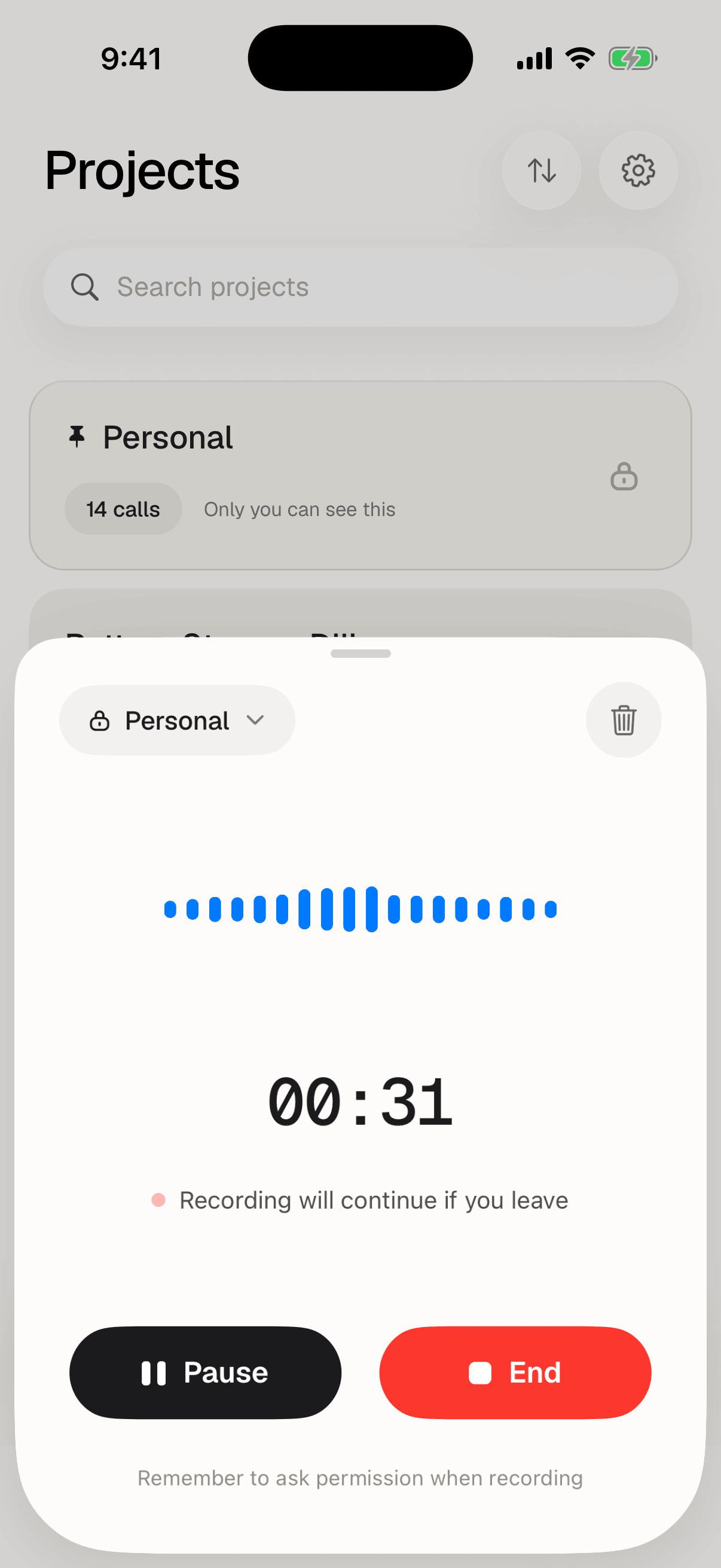
- Recording begins immediately. The timer starts counting and the waveform moves with what Junior can hear.
- Check the Project pill at the top is the right project. You can change it now or at any point during the call.
- Say out loud that you're recording.
The record button isn't a tab. Calendar and Projects are grouped together at the bottom left, and the button sits on its own at the bottom right. Closing the record screen puts you back where you were.
There's a second way in. If your calendar is connected, every upcoming call on the Calendar tab carries a Rec pill. Starting from there doesn't file the recording into a project. It opens with your default, like any other recording.
The controls
| Control | What it does |
|---|---|
| Project pill | The project this call will be filed into. Tap to change it before or during recording |
| Elapsed time | Counts up for as long as the recording runs |
| Waveform | Moves with what the microphone is picking up. Flat means Junior is hearing nothing |
| Pause | Stops capturing without ending the recording. Becomes Resume, and the screen shows Paused. iPhone only |
| End | Ends the recording and takes you to the call details form |
| Trash | Discards the recording without saving it |
While it runs
You can leave. Junior says so on the screen: "Recording will continue if you leave". Close the record screen, switch tabs, lock the phone, or put it in your pocket. See recording with the app closed or your phone locked.
On an iPhone you can Pause and Resume. On Android you can't, so end the recording and start another if you need a real break.
Stop
Tap End. Junior takes you straight to the details form. See saving a call's details. Recordings must be at least a minute long; anything shorter can't be saved.
Questions
Can Junior record both sides of a phone call?
No. A connected call holds the phone's microphone, and only one app can hold it, so Junior won't start while you're on one — speakerphone included. Take the call on your laptop and record there, or send Junior's bot. See phone or laptop.
The waveform is flat and the timer is counting.
Junior is recording but hearing nothing. Check nothing is covering the microphone, that you aren't on speakerphone with the volume down, and that no other app has grabbed the microphone. A flat waveform for the whole call means a silent recording, and there's no way to recover audio that was never captured, so glance at it once when you start.
I can't find Pause on my phone.
You're on Android. Pause is only available on iPhone. The way Android records in the background can't be paused and resumed, so the button isn't shown rather than shown and broken. End the recording and start a new one instead; both will save to the same project.
What's the difference between Pause and End?
Pause keeps one recording open and stops capturing audio for a while, which is useful when a call breaks for a few minutes. End finishes the recording for good and moves you on to filling in the call's details. There's no way to reopen an ended recording and add to it, so pause anything you intend to continue.
I started from my calendar and it picked the wrong project.
The Rec pill doesn't set a project. It opens with your default. Change the Project pill during the recording, or set it on the details form afterwards. To have the project chosen for you, start the recording from that project's own page instead.
What happens if a phone call comes in while I'm recording?
The phone takes priority and the recording is interrupted. It resumes on its own when the call ends, but the elapsed timer keeps counting through the interruption, so afterwards it can read longer than the audio it captured. Check the timer against how long you've been talking, and if the two have drifted apart, end the recording and start a fresh one.
Junior says my recording is too short.
Junior needs at least one minute of audio, and tells you so: "Junior needs at least 1 minute of audio to process a call." You get two choices: Keep recording, which resumes where you left off, or Discard call. There's no way to save a recording shorter than a minute. See "this recording is too short".
Why is there no transcript while I record?
Because a live transcript needs a steady connection for the whole call, and the situations that make a phone the right tool (a corridor, a client's office, a taxi, a building with no signal) are exactly the ones where that connection isn't there. It would fail when you most needed the recording to work. So the phone writes audio to the device and worries about the network afterwards, which is why you can record with no signal at all. Everything is transcribed after the recording reaches Junior. Asking Junior questions mid-call needs a live transcript too, so that stays a laptop feature.
Does that mean a phone recording gets a worse transcript?
No. It gets the same treatment as any other recording once it arrives: transcribed, cleaned, summarized, takeaways generated. The difference is only in when you can read it, not in what you end up with. What does differ is what the microphone could hear in the first place: a phone on a table hears a room less well than a headset hears a video call.