iPhone only. Android has no widget, Control Center control or Action Button.
Quicker ways to record
Four ways to start a recording without opening Junior first, for the interview where someone starts talking sooner than you expected.
Opening the app, finding the record button and tapping it takes a few seconds you don't always have. Junior adds four shortcuts that skip all of it, and each one is worth setting up once, before you need it.
| Where | What it does |
|---|---|
| Home screen widget | Tap to start recording, in two sizes |
| Lock screen widget | Tap to start recording, without unlocking |
| Control Center | A Junior control alongside the torch and camera |
| Action Button | Squeeze to record, plus Siri and the Shortcuts app |
All four do the same thing: they open Junior and start recording. None of them can stop or discard a recording by accident.
The home screen widget
Junior offers two home screen sizes. The small one is a single Tap to record button. The medium one adds Calendar and Projects alongside Record with Junior, so it doubles as a way into the app.
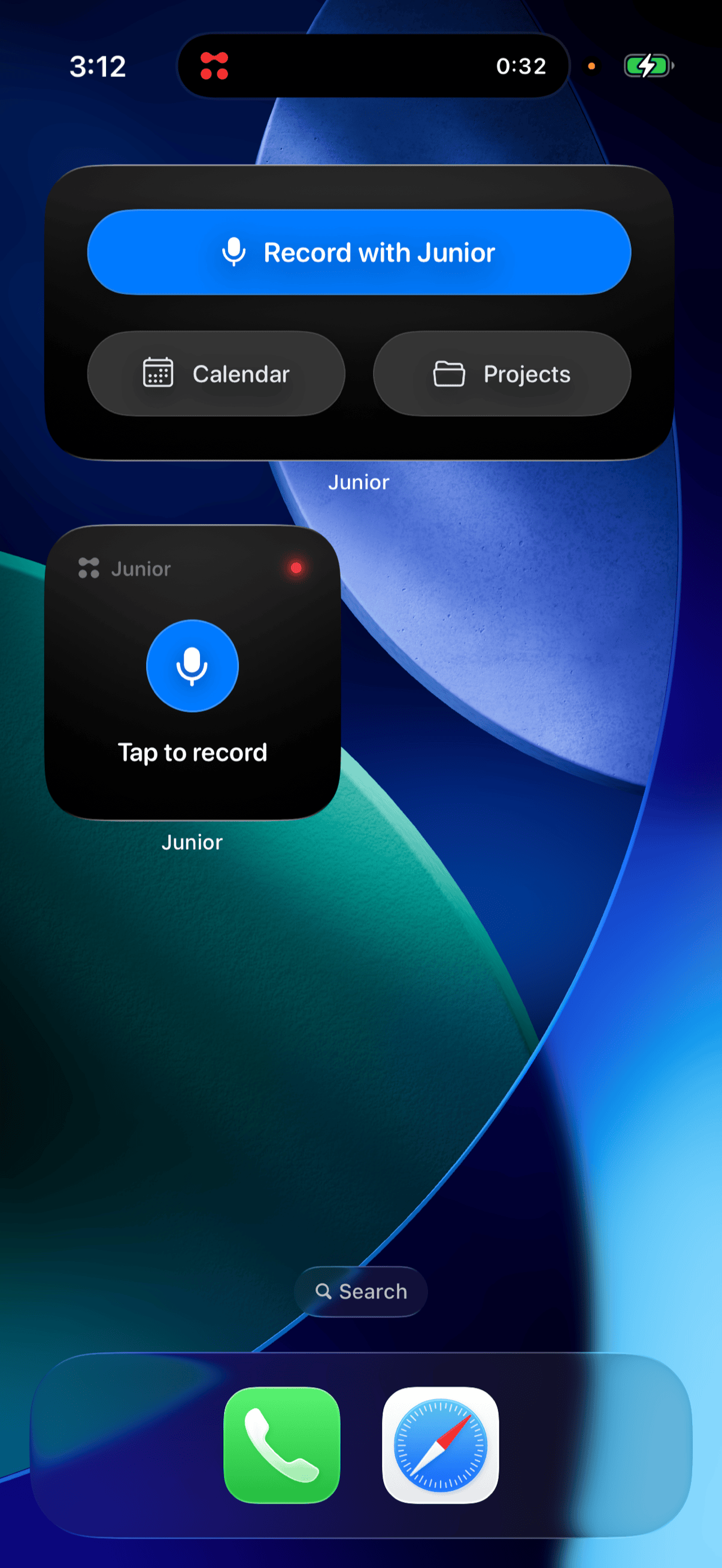
- Press and hold an empty part of your home screen, then tap the + at the top.
- Search for Junior.
- Pick Quick Record, choose the size you want, and tap Add Widget.
The lock screen widget
The lock screen sizes sit under the clock. Junior offers a wide one reading Tap to record and a round one that's only the Junior mark, so you can fit it next to whatever else you keep there.
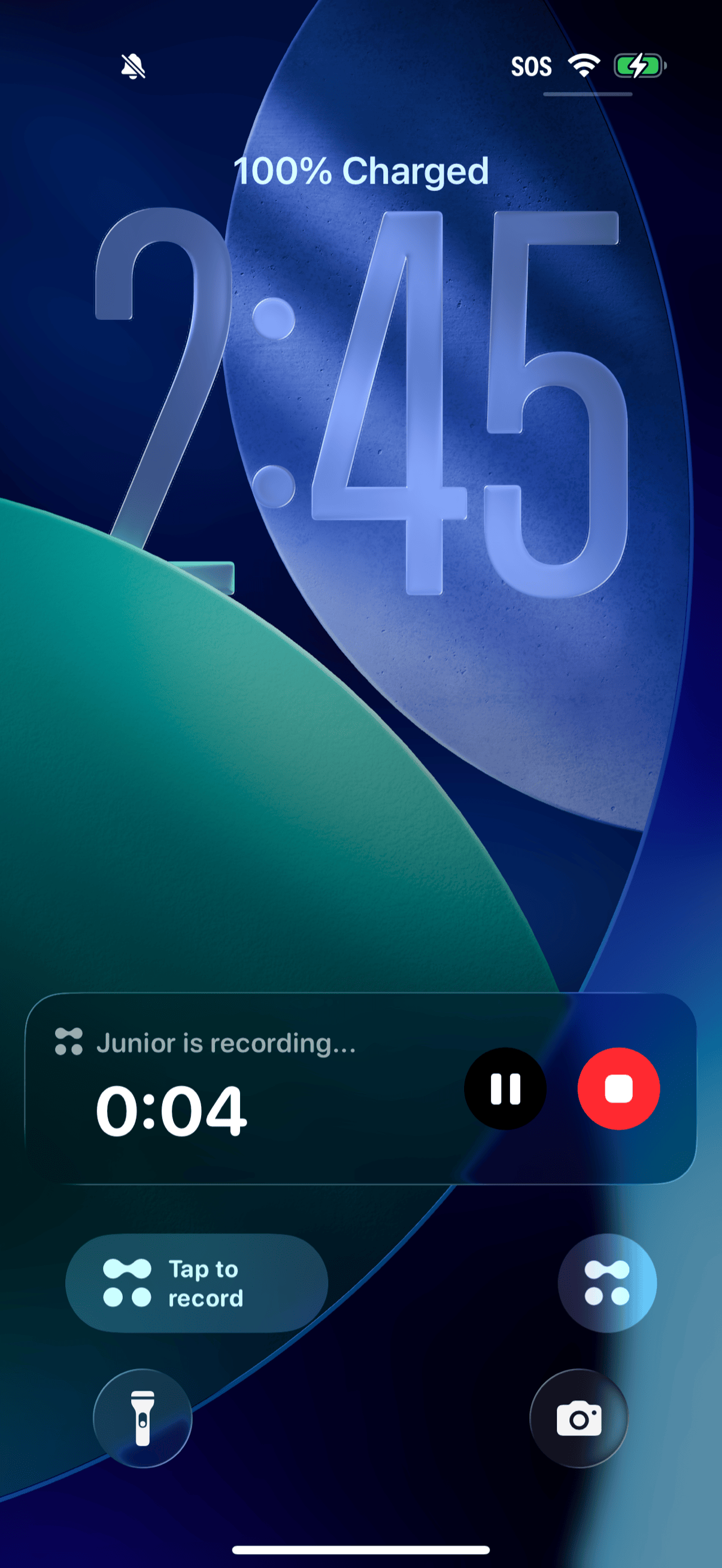
- Press and hold the lock screen, then tap Customize.
- Tap Lock Screen, then the area below the clock.
- Search for Junior and add Quick Record.
While a recording is running, a live indicator appears above them with the elapsed time and pause and stop controls, and the same indicator shows in the Dynamic Island. You can pause or end the recording from either without unlocking the phone.
Control Center
Junior can sit in Control Center next to the torch and the camera, as a control called Quick Record. It needs iOS 18 or later.
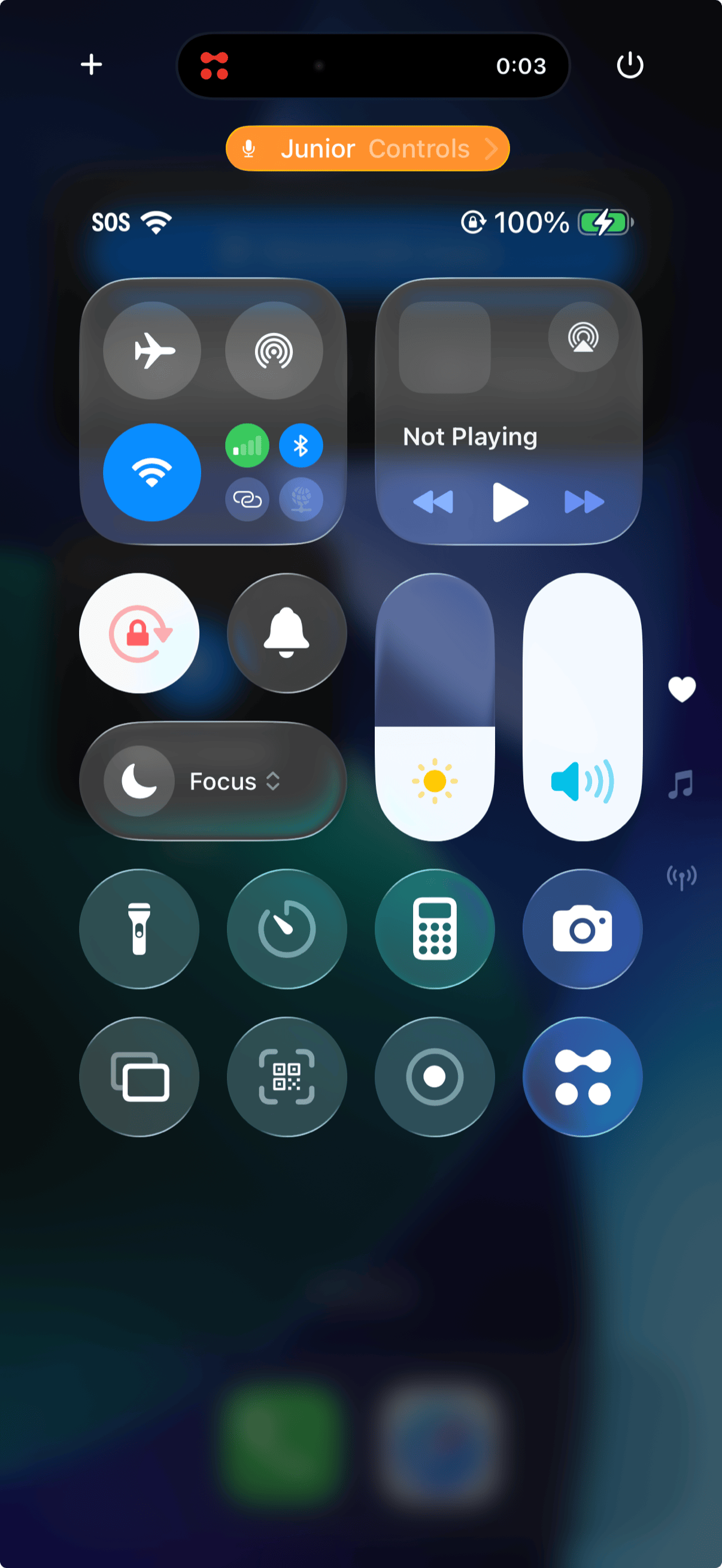
- Swipe down from the top right corner, then press and hold anywhere.
- Tap Add a control at the bottom.
- Search for Junior and pick Quick Record.
The Action Button, Siri and Shortcuts
Junior publishes a shortcut called Start Recording, which means three things work with no setup at all: Siri, the Shortcuts app, and, on an iPhone that has one, the Action Button.
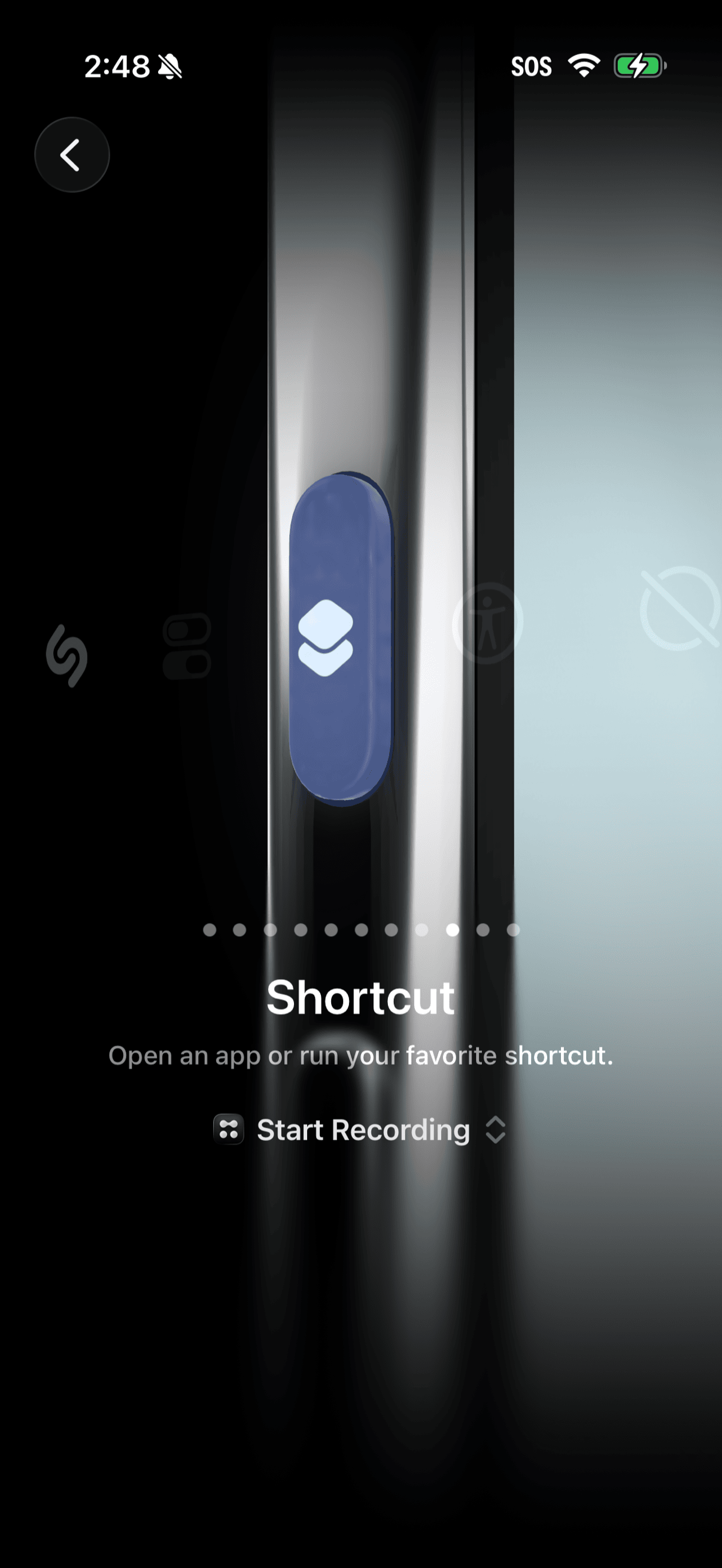
To put it on the Action Button:
- Open Settings, then Action Button.
- Swipe to Shortcut.
- Tap to choose a shortcut, and pick Start Recording under Junior.
Siri needs nothing set up. Say "Start recording in Junior", "Start a Junior recording", or "Record with Junior". The same shortcut appears in the Shortcuts app under Junior, so you can also fold it into a shortcut of your own.
Questions
The shortcut opened the app instead of recording.
That's expected, and it's true of all four. They hand off to Junior, which then starts the recording. The app has to come forward for the microphone to be captured. It's a step slower than it looks, but the recording begins without you having to find the button.
What does the widget show while I'm recording?
"Junior is recording", or "Junior is paused" if you've paused it. Tapping it at that point only opens the app. The widget won't stop or discard a recording by accident.
Which project does a recording started from a widget go to?
Your default, because a widget has no way to know which project you meant. Change the Project pill once the record screen is open, or set it on the details form when you finish.