Ending a recording takes you to a form headed Call information, with the call's length and time at the top. Only one field is required.
| Field | Required | Notes |
|---|---|---|
| Project | Yes | Every real project, plus No project |
| Meeting name | No | What the call is called |
| Job title | No | Their role |
| Organization | No | Where they work |
| Country | No | Where they're based |
| Rating | No | 1 to 5 |
Tap Save call. Junior confirms with Call saved and starts uploading.
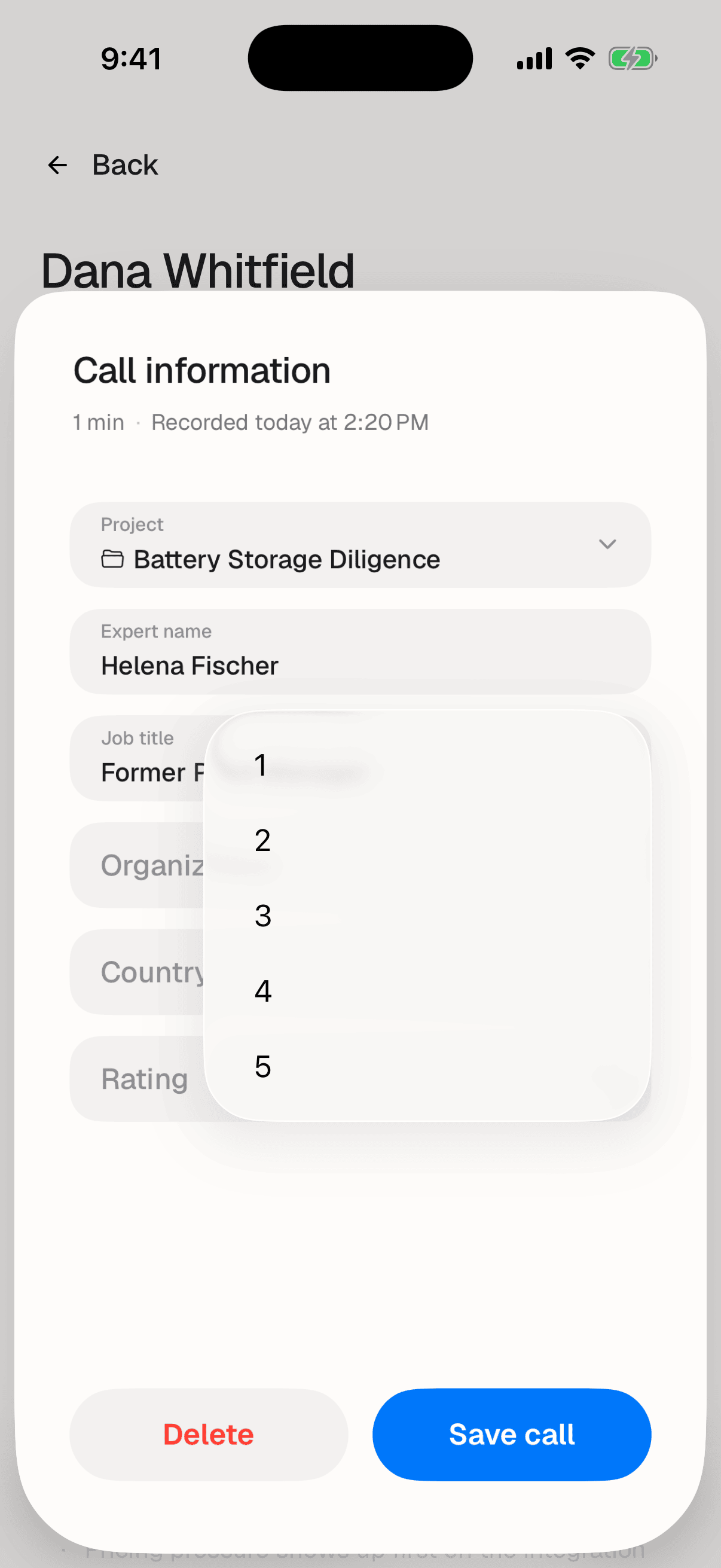
Fill this in now. Junior doesn't currently let you edit a call's details after saving, so anything you skip stays blank.
Questions
Can I change these details after saving?
Not on your phone, and not today. Once a call is saved the details are fixed, and there's no edit button on the call afterwards. If you've saved something wrong and it matters, ask support to correct it. This is a known gap rather than a deliberate restriction.
What does No project do?
It saves the call without filing it anywhere. Useful when you've recorded something before you know where it belongs. The recording and its transcript are processed exactly the same way. The only difference is that it won't appear under a project, so make a note of it if you need to find it again.
What's Rating for?
It's your own judgement of how useful the conversation was, on a scale of one to five, recorded alongside the call. It doesn't change how Junior processes anything. Leave it blank if you'd rather not.
Can I throw the recording away instead?
Yes, with Delete on the same form. Junior asks you to confirm, because a deleted recording is gone and can't be recovered. Nothing is uploaded and nothing reaches your project.
Does Save call mean it has uploaded?
No. Saving hands the recording to the upload queue; the upload itself happens afterwards and needs a connection. You can leave the app, but don't force-close it while an upload is in progress. See the upload queue.