Junior runs on iPhone and Android. How you get the app depends on your firm. Some install it for you through their device management; others expect you to download it yourself.
If your firm manages your phone, look in whatever app catalog it gives you first, because a managed copy is the one your firm expects you to have. Otherwise the store links below are the right route.
Install
The web app will hand you the store link for whichever phone you've.
- Sign in at app.myjunior.ai on your computer.
- At the bottom of the sidebar, next to Settings, press the question-mark button.
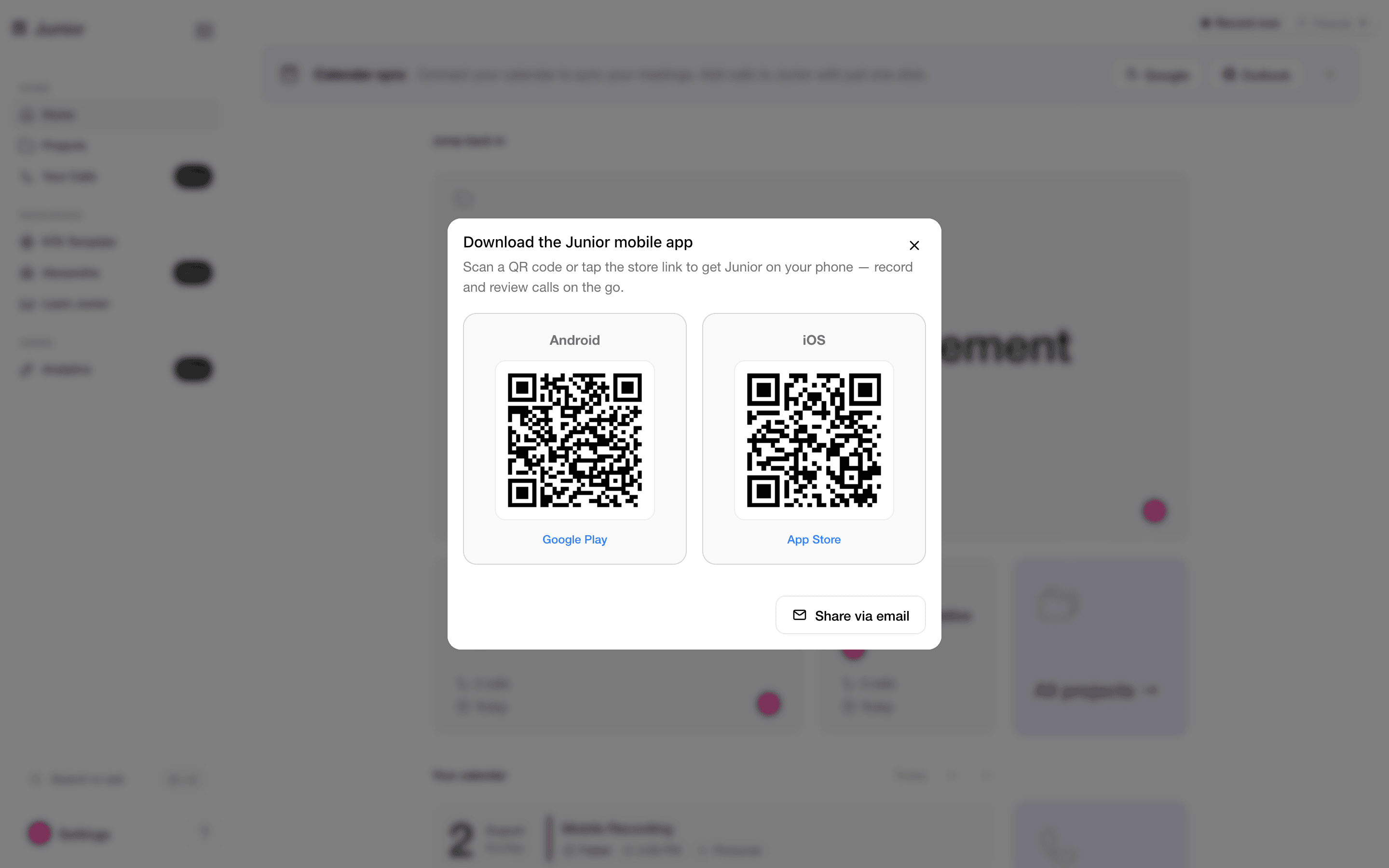
- Choose Download the mobile app. A window opens with a QR code and a store link for Android and for iOS.
- Point your phone's camera at the QR code for your phone. Google Play and App Store open the same listings in a browser if you'd rather, and Share via email sends both links to whoever you like.
- Install from the store, then sign in as below.
Sign in
- Open Junior and tap Log In.
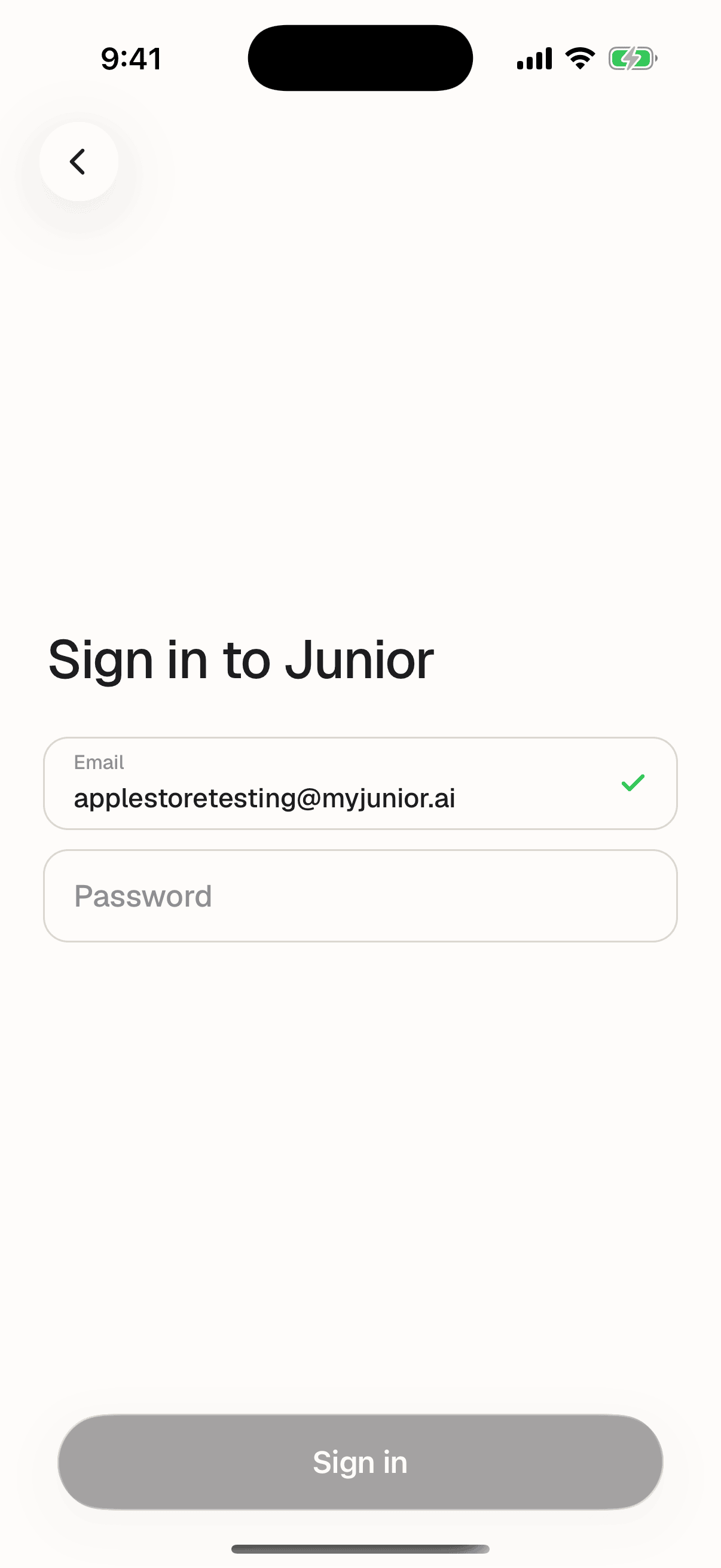
- Type your work email. Junior looks up your firm as you type, or you can tap Next to do it immediately.
- Tap the button that appears. Depending on your firm that's Sign in with a password, Sign in with Google, Sign in with Azure, or Sign in with SSO.
- Finish signing in. Google, Azure and SSO open your firm's own sign-in page in a browser, then return you to Junior.
Questions
My firm uses Intune Company Portal and Junior isn't in it.
Email support@myjunior.ai rather than waiting for it to turn up. Getting Junior published to your firm's Company Portal is something we arrange with your IT team, so we're the right first stop.
Junior says it can't load login options.
You'll see "Unable to load login options. Please try again." That one message covers several different causes: a typo in your email, no connection, a firm that hasn't been set up yet, or Junior's own service being briefly unavailable. Check the address first, then your connection. If both are fine, it's on our side and worth contacting support.
The browser opened, I signed in, and I ended up back at the login screen.
The sign-in completed but the answer didn't make it back to the app. Try once more; it usually works the second time. If your firm manages your phone, this can also mean the browser Junior opened isn't the one your firm allows for sign-in, which is something your IT team has to change centrally rather than something you can fix on the device.
Do I need to sign in separately on my laptop?
Yes. The phone app and Junior for Mac and Windows are separate installs and each needs its own sign-in. Your calls appear in both once you're signed in to both.